How to Block Yourself From Texting Someone on iPhone and Android
How to block yourself from texting someone: the iPhone Screen Time limit that works, what Apple says it covers, the Android options, and a friend as backup.
 By the UnLink Editorial Team · General educational guidance, not therapy
You can block yourself from texting someone on iPhone, but not with the Block button, which only stops their messages reaching you. Delete the contact, set Screen Time Communication Limits to Contacts Only, and have a friend set the Screen Time passcode. Android has no per-contact version, so pause the messaging app instead.
- Blocking a contact on iPhone stops their messages reaching you; Apple says outgoing calls and messages to a blocked contact are still allowed.
- Screen Time Communication Limits cover calls, FaceTime and messages in both directions, so a removed contact is unreachable while Contacts Only is on.
- The During Screen Time limit applies at all times other than downtime, not only during hours you pick. A night-only limit needs the During Downtime setting.
- A limit you can switch off yourself is a speed bump. Have a friend set the passcode, and skip Screen Time Passcode Recovery, which lets your Apple Account reset it.
- Google’s Digital Wellbeing tools pause whole apps, not one person, so on Android the lever is Focus mode or a zero-minute app timer behind a PIN.
Can you block yourself from texting someone?
Not with one tap. Blocking on a phone works in one direction: it stops their calls and messages reaching you, and it does nothing to the thread you can still open and type into. Apple’s own guidance says outgoing calls and messages to a blocked contact are allowed.
So the goal is friction, not a lock. Every extra step between the urge and the send button gives the calmer version of you a chance to turn up. Friction works best when you stack a few layers and when another person holds at least one key. The urge itself is not a character flaw: a 2010 brain-imaging study of people recently rejected by a partner found that looking at that person’s photo activated regions tied to reward and craving (Fisher and colleagues). Wanting structure around that is sensible.
What iPhone Communication Limits actually control
Communication Limits sit inside Screen Time. Apple describes them as a way to allow or block communication, including incoming and outgoing phone calls, FaceTime calls and messages, with contacts that live in iCloud, either at all times or during certain periods. That wording matters. It means the same limit that stops you texting someone also stops their texts reaching you.
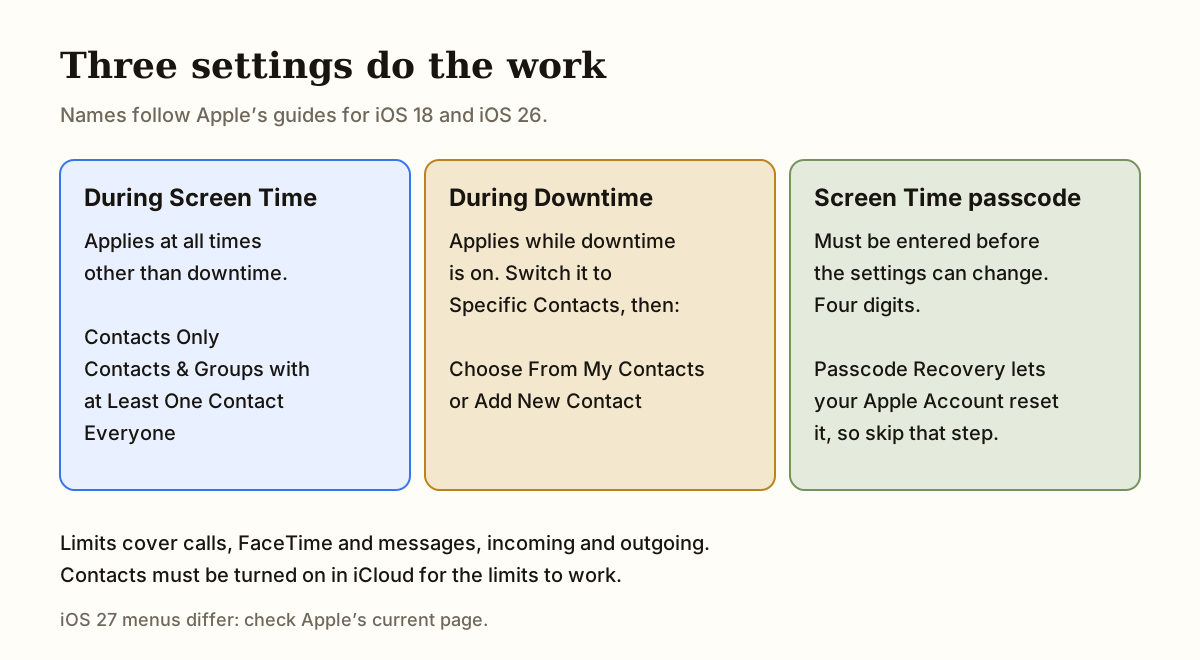
The menu names below come from Apple’s guides for iOS 18 and iOS 26, which are identical on this feature. The table shows the three During Screen Time choices and the one downtime choice that matters here.
| Setting | What it allows | Catch for this job |
|---|---|---|
| During Screen Time: Contacts Only | Calls, FaceTime and messages with people saved in your contacts | Anyone not saved is blocked both ways, including new numbers you may want to hear from. |
| During Screen Time: Contacts & Groups with at Least One Contact | One-to-one chats with saved contacts, and group chats that include at least one saved contact | A group chat with your ex and one saved friend still gets through. Use Contacts Only for this. |
| During Screen Time: Everyone | Anyone, including unknown numbers | No protection. This is the default idea of “no limit”. |
| During Downtime: Specific Contacts | Only the contacts you choose while downtime is on | The closest thing to a night-only limit. Pair it with Everyone for the rest of the day. |
How to set a night-only limit on iPhone
Most people do not need the person unreachable at noon. They need them unreachable at 11:40 p.m. Because During Screen Time covers every hour that is not downtime, the night-only version uses two settings together. Set During Screen Time to Everyone, schedule downtime for your hardest hours, then set During Downtime to Specific Contacts and pick only people you actually want to reach at night. Your ex is simply not on that list.
If you would rather keep it simple, set During Screen Time to Contacts Only and remove their contact. That works around the clock, and it will also stop texts from any number you have not saved, such as a new doctor or a delivery driver, so save anyone you still need before you switch it on. On iOS 27, Apple’s page shows the same three During Screen Time choices but changes the downtime setting to When Device Paused or Unavailable, with only Always Allowed or Everyone, and schedules became time windows. As of 15 October 2026 we could not find a Specific Contacts option on that page, so on iOS 27 use Contacts Only and check Apple’s current instructions.
- Turn on Contacts in iCloud. Apple says Communication Limits works with contacts in iCloud.
- Remove the person from your contacts, or have a friend save the number somewhere you cannot reach.
- Go to Settings, Screen Time, Communication Limits, then During Screen Time, and choose Contacts Only (all day) or Everyone (if you are using downtime).
- For night-only: schedule downtime, then open During Downtime, choose Specific Contacts and add only the people you want available.
- Test it. Apple says a blocked person’s name or number shows in red in your recent calls or messages, and the call or message will not go through.
Who should hold the Screen Time passcode?
A friend, and set it up while they are in the room. Apple says a Screen Time passcode must be entered before you can change the settings you chose for yourself, and you create it by entering four digits twice. So the friend types it, you look away, and nothing about the limit can change until they say so.
One loophole is worth closing. After setting a passcode for yourself, Apple offers Screen Time Passcode Recovery, which lets you reset a forgotten passcode with your Apple Account. That is exactly the back door you do not want at 1 a.m., so decline it. Agree the rules first, in plain words: “Don’t tell me the passcode, don’t give it back before Friday, and if I text you asking for it, the answer is no.”
A script helps if the request feels awkward: “I’m trying not to text someone at night. Can you set my Screen Time passcode and keep it for three weeks? If I ask you to change it, say no and ask me what’s going on.” Choose someone who will actually say no. A friend who folds is a settings menu with extra steps.
How to block yourself from texting someone on Android
Android does not have a contact-level limit in the official Digital Wellbeing help page, so the honest answer is that you pause the app, not the person. Google’s help page lists three levers, and menu names vary by phone, which Google says too.
Focus mode lets you choose apps to pause; while it is on you cannot use them or get their notifications, and you can set it to turn on by schedule. Its Take a break option lets you unpause for a set time, so keep that in mind as the loophole. App timers cap daily time per app, and Google notes that setting the limit to zero blocks access. The App limits PIN, a four-digit code you set after entering your device PIN, stops the timers being changed without it. Bedtime mode (grayscale, dimmed screen, Do Not Disturb) will not stop sending but takes the glow out of the 1 a.m. scroll.
The workable combination is a Focus mode or zero-minute timer on your messaging app during your risky hours, a PIN that a friend chooses, and the person’s number stored with the friend. Apps you do not pause, such as WhatsApp or Instagram, stay open, so add them to the same plan.
What to do with the thread, the alerts and the other apps
The thread is a trigger in itself. Scrolling past it at 1 a.m. is often what starts the drafting. Archiving or deleting it removes it from your main list, which adds a small pause before you find it again. Deleting does not stop new messages arriving, and if they write again the conversation comes back. Treat it as one layer.
In Messages, swipe the conversation and choose Hide Alerts so new messages from that thread stop lighting up the screen. You can still open it, so pair that with a Focus, which Apple lets you set to allow notifications only from the people and apps you choose. For the bigger picture of why the pull is strongest after dark, see why you want to text your ex at night.
Communication Limits are described by Apple in terms of calls, FaceTime and messages. They are not described as covering other apps, so assume Instagram DMs, WhatsApp and Snapchat stay open and set a Focus or app limit for those as well.
Blocking them is a different tool
Blocking solves a different problem. It keeps their calls and messages from reaching you, which matters if they keep reaching out. It does not stop you sending to them, and Apple notes that in a group conversation you can share a chat with someone you blocked: you will not see their messages, but they will see yours.
Apple’s guidance for iOS 26 also adds a Safety Check step while blocking and a central Blocked Contacts list under Privacy & Security. If you are weighing it, the guide on should you block your ex compares blocking, muting, restricting and unfollowing. Blocking is easy to reverse, which is why it works best paired with a limit that another person holds.
Which option adds the most friction?
No single option is a lock. The table runs from lightest to heaviest. Most people get the best result from one option in the middle plus a person who holds a key.
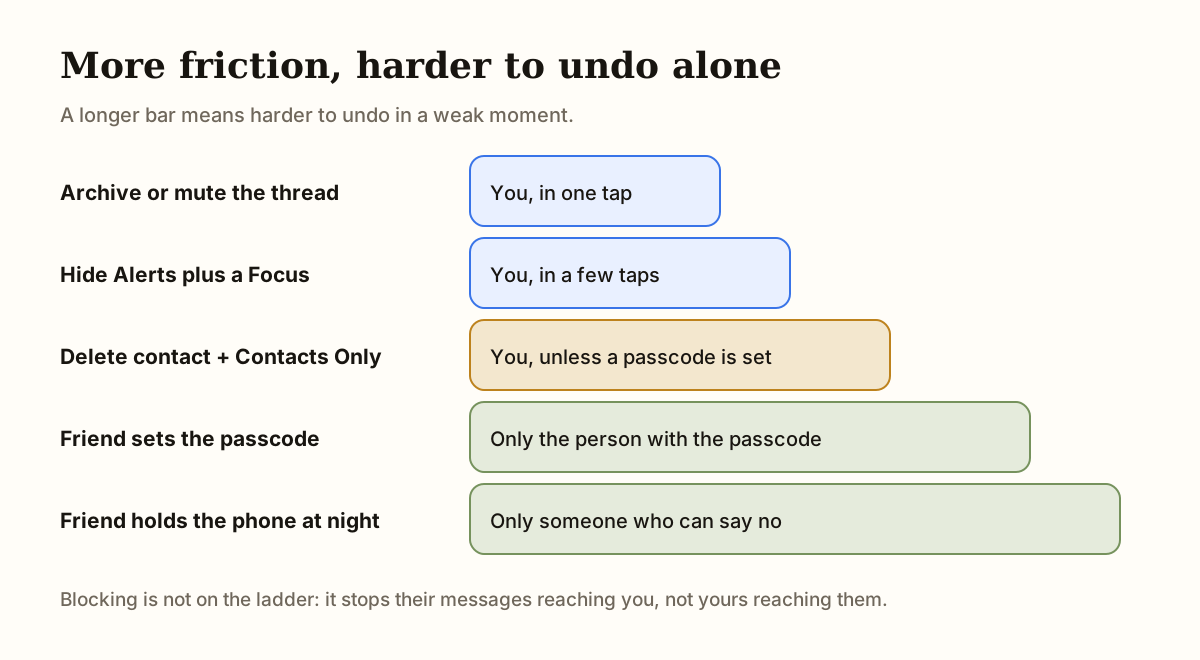
| Layer | What it stops | What it does not stop | Who can undo it |
|---|---|---|---|
| Archive or mute the thread | Seeing the thread on your list | Opening a new message to them | You, in one tap |
| Hide Alerts and a Focus | The buzz and the lit screen | Opening the thread and typing | You, in a few taps |
| Delete contact and Contacts Only | Calls, FaceTime and messages with that number | Other apps such as WhatsApp or Instagram | You, unless a passcode is set |
| Friend sets the Screen Time passcode | Changing the limit alone | Anything outside Screen Time’s scope | Only the person with the passcode |
| Friend holds the phone at night | Everything on that phone | A second device in the house | Only someone who can say no |
What to do when the urge arrives anyway
Limits can make the next hour easier, but the urge still shows up. Have a plan for it. A short if-then plan beats a general promise to be strong: “If I feel the pull to text at night, then I will open the reset tool and write the message in the unsent box instead.” Gollwitzer’s 1999 review found that specific if-then plans help people follow through on goals, because the decision is made in advance.
If you want a place for the message, the 90-second urge reset has an unsent-message box, and how to write an unsent letter goes further. Urges tend to rise and fall. A smokers study by Bowen and Marlatt (2009) found that urge surfing did not reduce the urges themselves, but participants smoked fewer cigarettes. You can have the urge and still not send. If the habit is wider than this one person, how to stop texting someone covers situationships, friends and family, and how to stop texting your ex is the full plan.
In UnLink, a free no-contact tracker for iPhone, you can log the urge and its trigger so the pattern becomes visible over days. Those tools do not replace the friction above. They give the unsent message somewhere to go.
If you keep finding a way around the limit
It usually means the plan needs a person rather than another setting. Check which exit you used: the passcode, a second app, a borrowed phone, or asking the friend to give in. Then close that exit and keep going. Finding a workaround is information, not proof you are failing.
If you do text them, the day is not ruined. The guide on what to do if you break no contact covers the next step. If contact with this person feels unsafe or controlling, a limit on your own phone is not a safety plan. See our safety page, and in the US the National Domestic Violence Hotline is 1-800-799-7233 (or text START to 88788).
Step-by-step plan
- Turn on Contacts in iCloud
Open Settings, tap your name, then iCloud, tap See All next to Saved to iCloud, and turn on Contacts. Apple says Communication Limits works with contacts in iCloud.
- Set up Screen Time for yourself
Open Settings, go to Screen Time, and turn it on for your own iPhone using Apple’s setup steps.
- Remove the number from your contacts
Delete the contact, or give the number to a friend to keep. The limit decides who you can reach based on your saved contacts.
- Open Communication Limits
Go to Settings, Screen Time, Communication Limits, then During Screen Time.
- Choose the all-day or the night-only version
For all day, select Contacts Only. For night only, select Everyone, schedule downtime for your hardest hours, then open During Downtime and choose Specific Contacts with only the people you want. On iOS 27 check Apple’s current page, which words the downtime setting differently.
- Have a friend set the Screen Time passcode
Go to Settings, Screen Time, Lock Screen Time Settings. The friend enters the four-digit passcode twice while you look away. Skip Passcode Recovery so your Apple Account cannot reset it.
- Test the limit
Try to message the number. Apple says a blocked person’s name or number appears in red in your recent calls or messages and the message will not go through.
- Silence the thread and add a Focus
Hide Alerts on the conversation, then set a Focus that allows notifications only from people and apps you choose during your hardest hours.
You do not have to solve the whole relationship tonight. Take one private step that creates space between the feeling and the action.
90-second urge reset with an unsent-message box →Common questions
Can you block yourself from texting someone on iPhone?
Not with the Block button, which only stops their calls and messages reaching you. You can make it very hard with Screen Time Communication Limits set to Contacts Only, the contact removed, and a friend holding the Screen Time passcode. Apple says the limit covers calls, FaceTime and messages in both directions.
How do I stop myself from texting my ex on my iPhone?
Remove their contact, set Communication Limits to Contacts Only or use Specific Contacts during downtime for a night-only version, then ask a friend to set the Screen Time passcode. Hide Alerts on the thread and add a Focus. Then write a short if-then plan for the moment the urge hits.
Does blocking someone stop me from texting them?
No. Apple’s guidance says outgoing phone calls, messages and emails to blocked contacts are allowed. Blocking only stops theirs reaching you, so pair it with a limit or a person who holds a key.
Can Screen Time stop me from messaging just one person?
Indirectly. Screen Time works from your contacts, so with Contacts Only on and the person removed, messaging them will not go through. Apple says the blocked name shows in red in your recents. It also blocks every other unsaved number, so keep anyone important in your contacts.
How do I stop myself from texting someone at night only?
On iOS 18 and iOS 26, set During Screen Time to Everyone, schedule downtime for your hardest hours, and set During Downtime to Specific Contacts, adding only people you want to reach. The During Screen Time setting applies at all times other than downtime, so it is not a night-only switch by itself.
Can I block myself from texting someone on Android?
Not by contact. Google’s Digital Wellbeing offers Focus mode to pause chosen apps, app timers (zero blocks an app) and an App limits PIN. That pauses the whole messaging app, so ask a friend to set the PIN and keep the number for you.
What if I keep finding ways around the limit?
That is common, and it usually means the plan needs another person rather than another setting. Ask a friend to hold the passcode, decline Screen Time Passcode Recovery, and agree in advance that you will not change the plan alone. Pair it with a short if-then plan for the moment the urge comes.
Is it normal to want help controlling texts to someone I still miss?
Yes. A brain-imaging study of people recently rejected by a partner found that viewing that person’s photo activated regions linked to reward and craving, so the pull can feel like a real craving. Asking for structure is a reasonable response, not a sign of weakness.
If contact involves threats, stalking, coercion, shared children, housing or immediate safety, a general no-contact rule may not fit. Read the safety guidance and seek qualified local help where appropriate.
Sources and further help
- Apple Support: Choose who you can communicate with at certain times with Screen Time on iPhone
- Apple Support: Create, change, or remove a Screen Time passcode on iPhone
- Apple Support: Block, screen, and filter communications (Personal Safety User Guide)
- Apple Support: Set up Screen Time for yourself on iPhone
- Apple Support: Set up a Focus on iPhone
- Apple Support: Screen and filter text messages on iPhone
- Android Help: Manage how you spend time on your Android phone with Digital Wellbeing
- Fisher HE et al. (2010), Reward, addiction, and emotion regulation systems associated with rejection in love
- Gollwitzer PM (1999), Implementation intentions: strong effects of simple plans
- Bowen S & Marlatt GA (2009), Surfing the urge: brief mindfulness-based intervention for college student smokers
- National Domestic Violence Hotline — safety planning
- 988 Suicide & Crisis Lifeline — US crisis support
Research is cited to explain general patterns, not to diagnose or predict any individual outcome. Sources do not endorse UnLink. Read our editorial principles.
Keep this support one tap away.
UnLink is a free, private no-contact tracker for iPhone: count your days, get through urges and restart without losing your history.